How to loop part of a YouTube video
YouTube can loop a whole video, but not just one section. With Cherry, paste the YouTube link (or search the song), drag the two grips around the part you want, and save. Cherry plays just that section on repeat and keeps it in your library.
Try Cherry free →What YouTube can and can't do
On a computer, you can right-click a YouTube video and choose Loop to repeat the whole thing. What you can't easily do is loop just one part, like the chorus or the drop, and keep it ready for next time.
That's exactly what Cherry is for: pick a start and an end, and that section becomes the song.
How to loop a section with Cherry
Paste the link or search
Copy the YouTube link and paste it into Cherry's search, or just search for the song by name. Add it to your library.
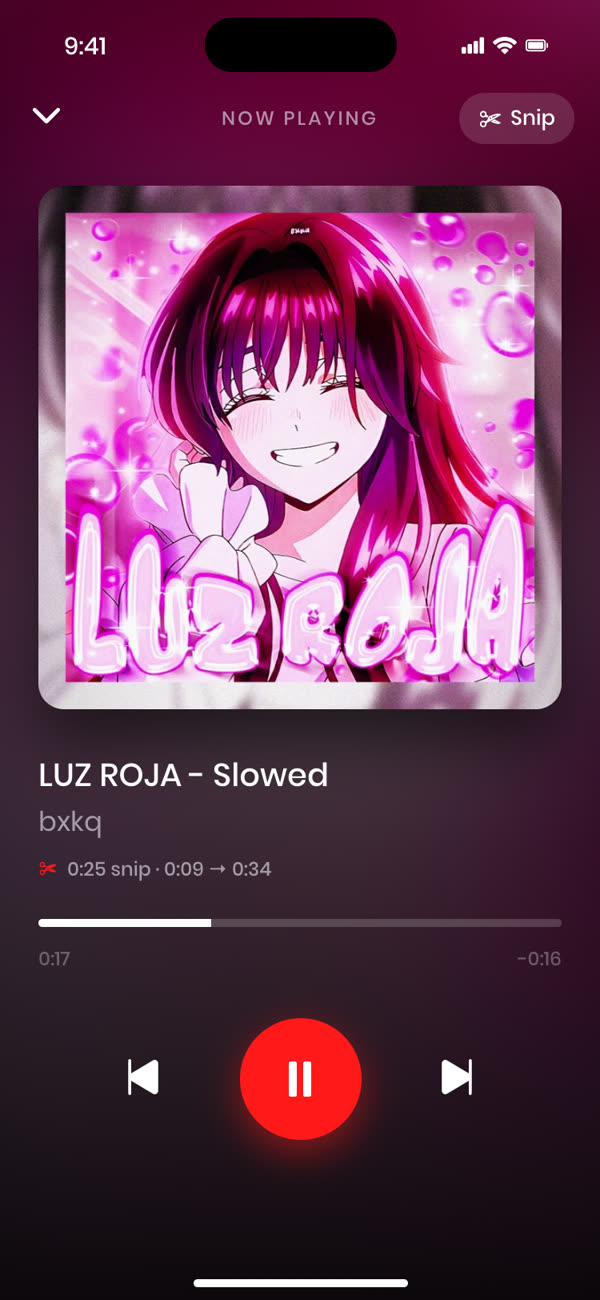
Open the snip editor
Tap the scissors next to the song to see it as a waveform.
Drag the grips
Move the left grip to the start of your part and the right grip to the end. Press Play to preview.
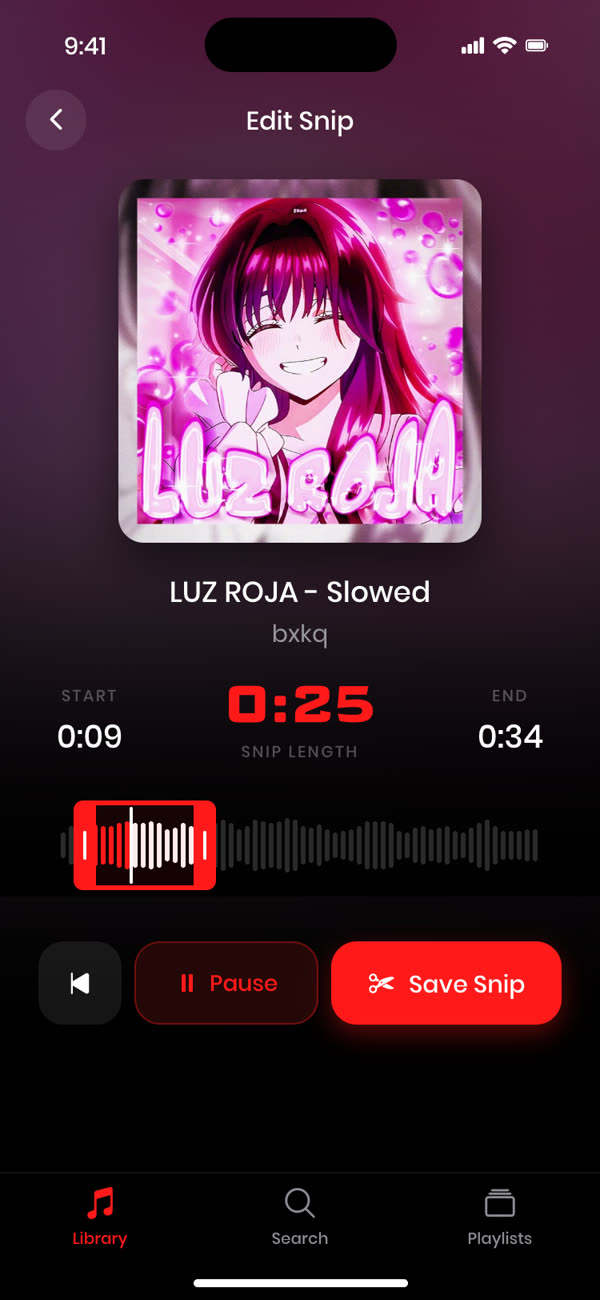
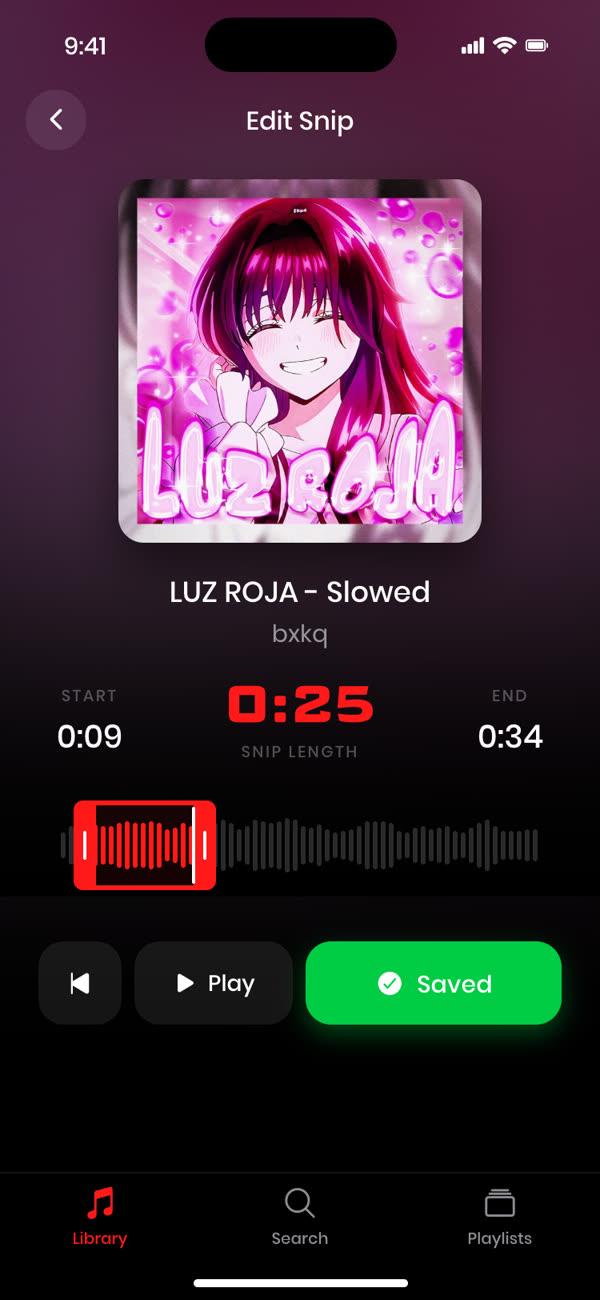
Save it
Tap Save Snip. That section now loops every time you play it.
Frequently asked questions
Can YouTube loop just part of a video?
Not easily. YouTube can repeat a whole video (right-click, then Loop on a computer), but there's no simple built-in way to loop and save just one section.
Do I need to download anything?
No. Cherry runs in your browser. Paste a link or search, then snip.
Is it free?
Your first 3 songs are free, with full snipping and looping. Cherry Pro unlocks an unlimited library.
Does it work on my phone?
Yes, in your phone's browser. On phones, music pauses when the screen locks or you leave the browser, so for non-stop listening use a laptop.
Snip any track to the perfect moment.
Free for your first 3 songs.
Get started free →